Digital Ticketing Now Available
Washington Performing Arts now offers digital tickets using your smartphone as your event ticket with a unique QR code. No apps are necessary to access your digital wallet; you will log in online.
Digital tickets offer a safe and easy way to receive and manage your reservations and to securely share your tickets with guests, while reducing the ability for stolen or counterfeit tickets. If you opted to receive digital tickets for your upcoming concert(s), please see the instructions below on how to access and share them.
Learn more about Washington Performing Arts digital tickets in our instructional video.
Please follow these instructions for accessing your digital tickets before coming to the event. Importantly, screenshots or printouts will not be accepted for ticket entry. Access your Digital Ticket Wallet with the button below.
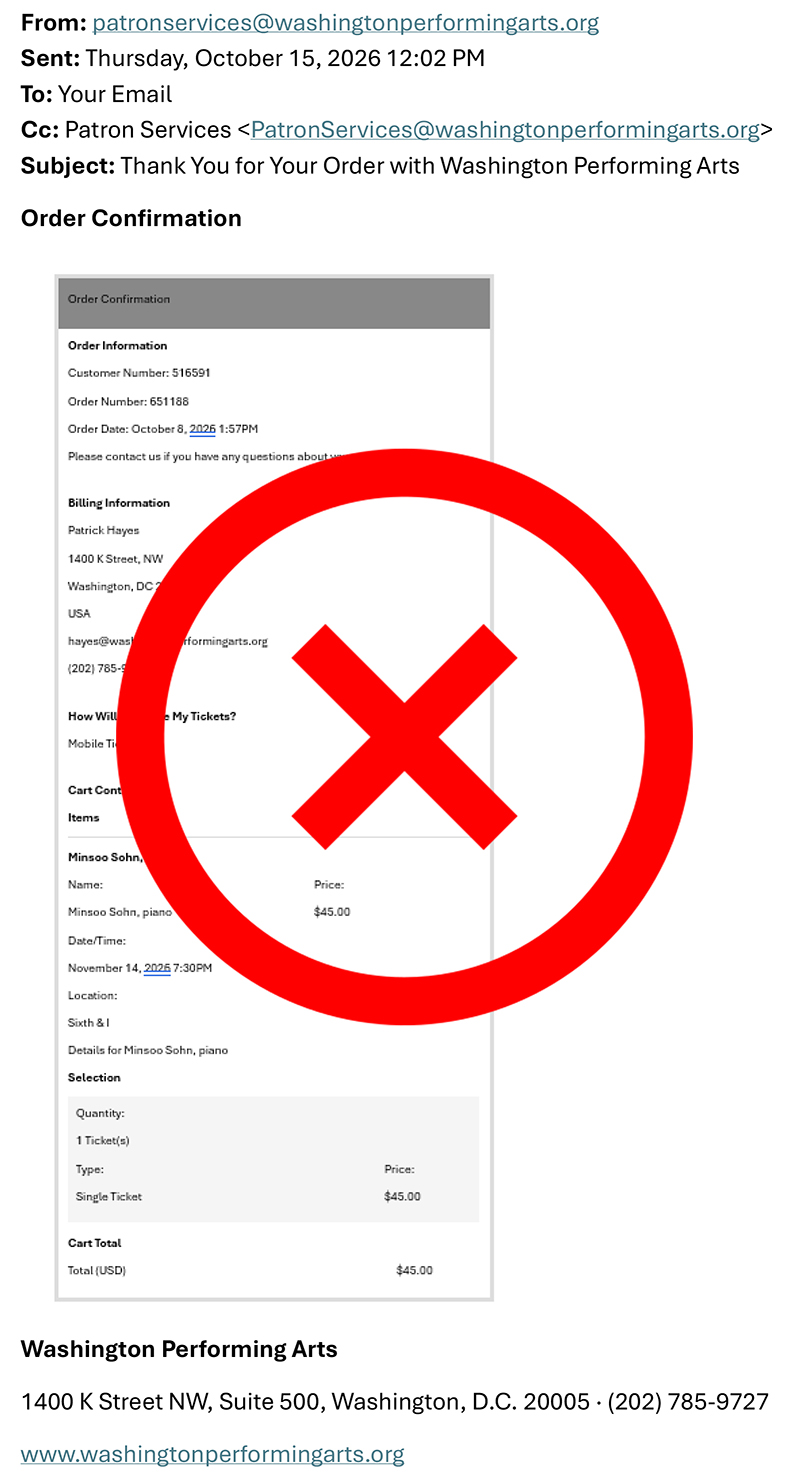
Note: Your order confirmation email is not a ticket. You must log in to access and retrieve your ticket(s).
1. Log in using the same email and password you use to log into my.WashingtonPerformingArts.org or use passwordless authentication. This can only be done on a mobile phone using the email associated with your account.
If you forget your login information, choose the “Request an Access Code via Email” option. You will receive an email with a 6-digit code you can copy and paste to access your account.
For ease of access, bookmark the web address on your device, log in before you arrive at our venues, and select “Stay Logged In” when prompted.
2. Open Your Digital Ticket Wallet
Tickets are delivered to your Digital Ticket Wallet immediately upon purchase. If ticket sharing is available, it can be done right away.
You may also save tickets to your Apple Wallet or Google Wallet.
3. Scan Your Ticket at the Venue
The QR code will appear 90 minutes before doors open for the performance. Your barcode includes technology to protect it. Screenshots or printouts will not be accepted for entry.
Quick Tips:
• Open a browser (e.g., Safari, Firefox or Google Chrome) to view your digital tickets.
• If you experience any issues with your QR code, refresh the page.
• Make sure your phone’s browser is using Light Mode (not Dark Mode).
4. Digital Ticket Sharing
We recommend sharing your digital tickets in advance if you won’t arrive at the venue at the same time as others in your party. Recipient(s) will need to log in to access their ticket(s) and may need extra time. Digital tickets can be shared with anyone via the mobile wallet by tapping the share tickets button, entering the recipient’s name and selecting the ticket(s) you would like to share.
• Tap the “Share” button, enter the recipient’s name, and select the tickets you want to share.
• Read and agree to the Terms of Use, and tap “Next.”
• Review and confirm the name and selected tickets, and tap “Confirm.”
• Tap the “Share with your guest” icon and send the link to the recipient via text, email, or another app of your choice. Please note that certain pop-up blockers may interfere with this functionality. Alternatively, you can copy and paste the ticket link (by tapping the link icon) and send it manually to your guests.
• Need to send the ticket link again? Select “Share this invite again.”

Troubleshooting
Known Issue with Gmail App (iPhone and Android)
If you attempt to access your tickets by clicking on a link from a Washington Performing Arts email, you may not be able to properly use the “Request Access Code” feature to log in without a password.
Recommendation: To get your tickets, open a new window in your smartphone’s web browser (Safari, Chrome, etc.) and go to mytix.WashingtonPerformingArts.org. If you forgot your password, you can then request an access code to be sent to your email.
Tickets Do Not Appear After Logging In
If you log in to https://mytix.washingtonperformingarts.org and your tickets do not appear, this may happen for a few different reasons.
Could your account be associated with a different email address? For example, a patron in our system might have both gmail.com and other email addresses.
In rare instances, tickets may be affiliated with the email address of another member of your household.
Digital tickets will also not appear if you selected a different ticket delivery method at the time of purchase (mail, hold at will call, etc.).
Recommendation: If the above conditions do not apply, please contact our Patron Services team on site at the event for assistance. You can also call us 9:30 a.m.-5:00 p.m. Monday through Friday at (202) 785-9727.
My Tickets Don’t Have a QR Code. What do I do?
As a safety measure, the QR codes will not be visible on your tickets until 90 minutes before your performance start time. Your QR code for your digital tickets will automatically appear in your digital wallet at that time.
WiFi and Data Plan Issues
If you don’t have a data plan tied to your smartphone, you may not be able to connect to WiFi outside our venues to access digital tickets upon arrival. We don’t recommend using Digital Tickets if you don’t have a data plan.
What if my phone dies before the performance?
No problem! Simply visit our patron services team at the venue and we will assist with your tickets/location passes. You will need to show a valid ID that matches the name on the ticketing account.
How will I know if my guests have claimed the tickets?
Once you share a digital ticket, you will see one of the two following status notifications:
- Ticket Accepted by (Your Guest’s Name)
• Your guest has claimed your shared ticket(s).
- Ticket Shared with (Your Guest’s Name) Pending
• Your guest has not accepted the digital ticket(s) yet.
• You may want to remind them to check their email or text messages for the ticket invite link you sent to them.
• You may also “Share the invite again” or “Get this ticket back” in your wallet.
If you attempt to access your tickets by clicking on a link from a Washington Performing Arts email, you may not be able to properly use the “Request Access Code” feature to log in without a password.
Recommendation: To get your tickets, open a new window in your smartphone’s web browser (Safari, Chrome, etc.) and go to mytix.WashingtonPerformingArts.org. If you forgot your password, you can then request an access code to be sent to your email.
If you log in to https://mytix.washingtonperformingarts.org and your tickets do not appear, this may happen for a few different reasons.
Could your account be associated with a different email address? For example, a patron in our system might have both gmail.com and other email addresses.
In rare instances, tickets may be affiliated with the email address of another member of your household.
Digital tickets will also not appear if you selected a different ticket delivery method at the time of purchase (mail, hold at will call, etc.).
Recommendation: If the above conditions do not apply, please contact our Patron Services team on site at the event for assistance. You can also call us 9:30 a.m.-5:00 p.m. Monday through Friday at (202) 785-9727.
As a safety measure, the QR codes will not be visible on your tickets until 90 minutes before your performance start time. Your QR code for your digital tickets will automatically appear in your digital wallet at that time.
If you don’t have a data plan tied to your smartphone, you may not be able to connect to WiFi outside our venues to access digital tickets upon arrival. We don’t recommend using Digital Tickets if you don’t have a data plan.
No problem! Simply visit our patron services team at the venue and we will assist with your tickets/location passes. You will need to show a valid ID that matches the name on the ticketing account.
Once you share a digital ticket, you will see one of the two following status notifications:
- Ticket Accepted by (Your Guest’s Name)
• Your guest has claimed your shared ticket(s). - Ticket Shared with (Your Guest’s Name) Pending
• Your guest has not accepted the digital ticket(s) yet.
• You may want to remind them to check their email or text messages for the ticket invite link you sent to them.
• You may also “Share the invite again” or “Get this ticket back” in your wallet.







Digital ticketing for Washington Performing Arts is powered by True Tickets. Read the True Tickets Privacy Policy.